


How to Bypass your HP Printer Cartridge Error Easily Simply?
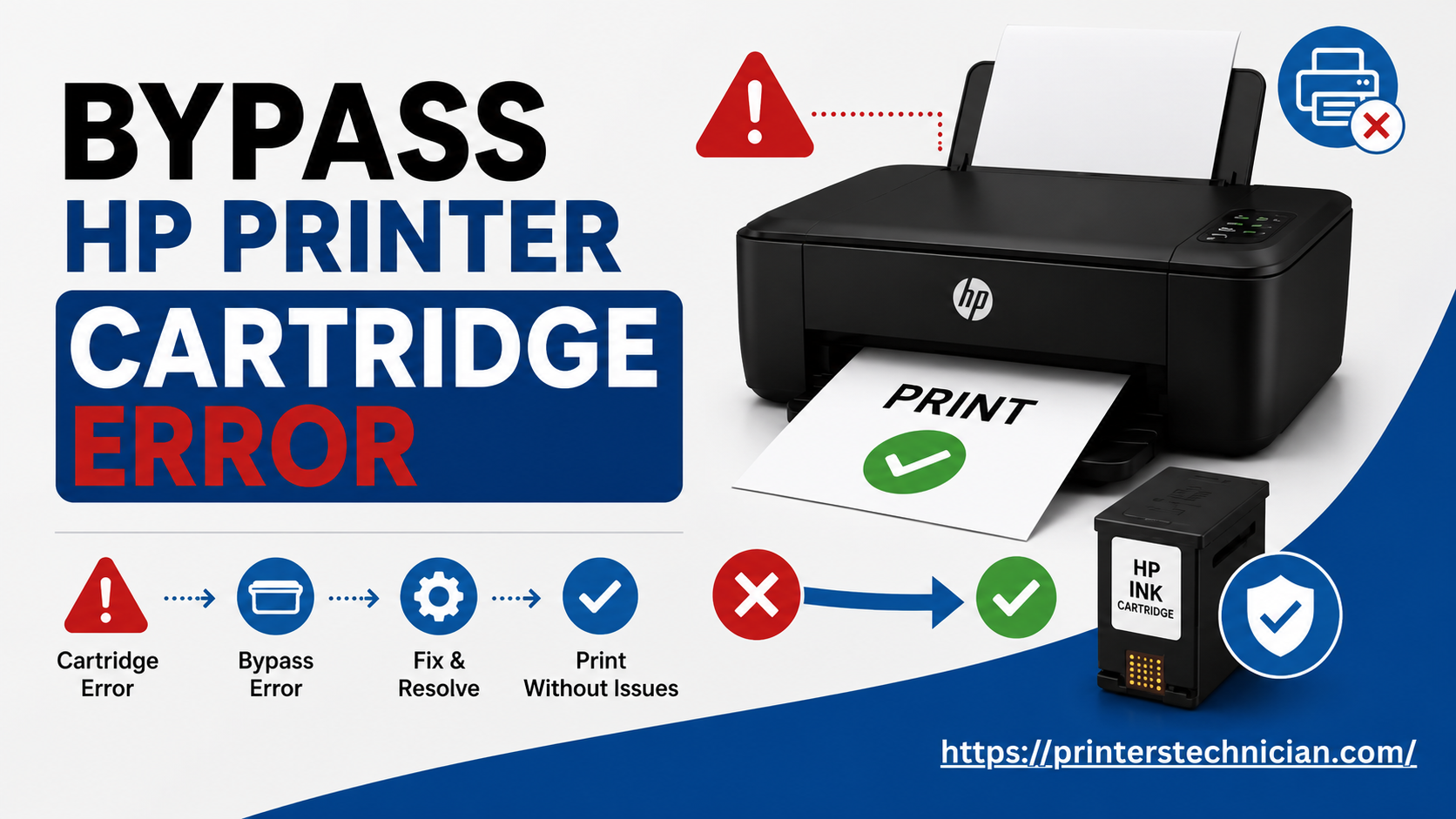
Printers play an important role in daily tasks, whether at home or in the office. It can be extremely frustrating when your HP printer suddenly displays a cartridge error, even when the ink cartridge appears to be in good condition. Fortunately, this issue is quite common and can usually be fixed with a few simple steps.
Common Reasons Behind HP Cartridge Errors
Before fixing the problem, it is important to understand what causes it. One of the main reasons is the use of incompatible or non-genuine cartridges. HP printers are designed to work with specific models, and third-party cartridges may not always be recognized.
Another common issue is dirty or damaged cartridge contacts. These small copper strips help the cartridge communicate with the printer. If they are covered with dust or dried ink, the printer may fail to detect the cartridge properly.
Incorrect installation can also trigger this error. If the cartridge is not firmly placed in its slot, the printer will not recognize it. In some cases, firmware updates can block non-original cartridges. Additionally, some cartridges have expiration dates, which may cause errors even if the ink is still available.
Steps to Fix HP Printer Cartridge Error
1. Restart Your Printer
Start with a basic reset. Turn off your printer, unplug it from the power source, and wait for about 60 seconds. Plug it back in and turn it on. This helps clear temporary system errors.
2. Reinstall the Cartridge
Open the printer access door and wait for the carriage to stop moving. Remove the cartridge carefully and inspect it for any damage or leakage. Reinsert it firmly into the correct slot and close the access door.
3. Check Cartridge Compatibility
Ensure that the cartridge model matches your printer’s specifications. Also, verify that it is suitable for your region, as incompatible cartridges often cause recognition issues.
4. Clean Cartridge Contacts
Turn off and unplug the printer. Remove the cartridge and gently clean the copper contacts using a lint-free cloth slightly dampened with distilled water. Dry them completely before reinstalling the cartridge.
5. Disable Cartridge Protection
You can also turn off cartridge protection settings. On touchscreen printers, go to the settings menu and disable cartridge protection under supply settings. On non-touchscreen models, use the control panel buttons to access similar options. If you are using a Windows system, you can change these settings through printer properties.
Visit: https://printerstechnician.com/how-to-bypass-your-hp-printer-cartridge-error/
Conclusion
In most cases, simple troubleshooting steps like restarting the printer, reinstalling the cartridge, or cleaning the contacts can resolve the issue quickly. Ensuring that you use compatible cartridges and maintaining your printer regularly can help prevent such problems in the future. If the error still persists, trying a different cartridge can help identify whether the issue is with the printer or the cartridge itself.
With the right approach, you can get your printer back to working smoothly without unnecessary stress.
Source: HP printer cartridge errors

 English
 Arabic
 French
 Spanish
 Portuguese
 Deutsch
 Turkish
 Italiano
 Russian
 Romaian
 Portuguese (Brazil)
 Greek
Greek