


Convert Logo for BAi Mirror Embroidery Machine for Commercial Use
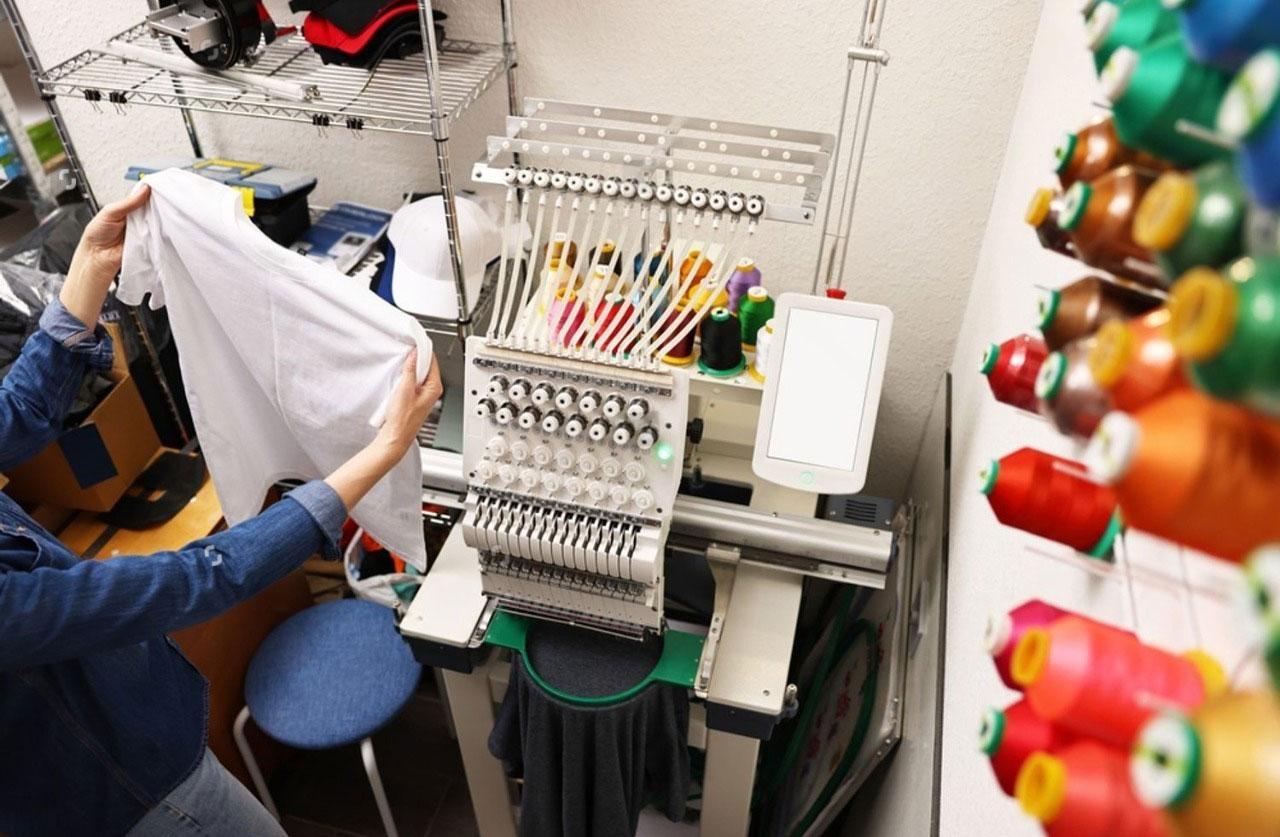
You just unboxed your shiny new BAi Mirror. Fifteen needles. Big color touchscreen. Wi-Fi connectivity. This machine means business. But now you sit there staring at a logo file on your computer, and you realize you have no idea how to actually get it to stitch. You cannot just drag and drop a JPEG. If you want professional results for commercial orders, you need to learn how to Convert Logo for BAi Mirror Embroidery Machine the right way.
The BAi Mirror series has taken the embroidery world by storm. It offers commercial-grade performance at a fraction of the cost of legacy brands . Small shops, home-based businesses, and even established decorators love these machines. But the machine is only as good as the files you feed it. If you feed it garbage, it stitches garbage. Let's fix that.
Understanding Your BAi Mirror Machine
Before we dive into file conversion, you need to understand what you are working with. The BAi Mirror is a single-head, 15-needle commercial embroidery machine . It handles up to 1,000 stitches per minute on the standard model, and the Mirror 1501 hits 1,200 stitches per minute . The embroidery area stretches to 500 x 350 mm on the standard model, and the 1501 variant goes even bigger at 500 x 800 mm .
You bought this machine for production. You want to run hats, jackets, polos, and bags. You want to take bulk orders and crank them out efficiently. To do that, you need files that run without thread breaks, without misalignments, and without constant babysitting. That starts with proper logo conversion.
File Formats Your BAi Mirror Actually Reads
Here is where most beginners stumble. Your BAi Mirror does not read JPEG, PNG, or PDF files. Those are image formats. They show pictures. Your machine needs stitch data. It needs to know where to poke the needle, when to change color, and when to trim.
The BAi Mirror supports two main embroidery file formats: DST and DSB .
DST is the industry standard. It originated with Tajima machines but every major brand accepts it. If you only use one format, make it DST. It stores all the stitch information your machine needs and works flawlessly with BAi .
DSB is the Barudan format. BAi machines also support it, though it is less common than DST . Some digitizers prefer DSB for certain projects, but DST remains the safe, universal choice.
You transfer these files to your machine via USB or through the Institch Cloud platform using Wi-Fi . The cloud transfer is slick once you set it up, but USB works every time.
What Logo Conversion Really Means
Let's clear up a major misconception. Converting a logo for embroidery is not the same as converting a file type. When people say "convert," they usually mean "digitize." Digitizing is the art of taking a flat image and manually plotting every single stitch .
You decide where satin stitches go. You decide where fill stitches cover large areas. You add underlay to stabilize the fabric. You set pull compensation so the design does not shrink on stretchy materials. You plan the stitch path so the machine moves efficiently without excessive trims or jumps .
This is not automatic. Software does not do this well on its own. Auto-digitizing tools create files that look okay on screen but fail on fabric. They cause thread breaks, puckering, and misalignment. For commercial use, you need human-driven digitizing.
Step-by-Step: Converting Your Logo for BAi Production
Let's walk through the actual process of taking a logo from artwork to a running file on your BAi Mirror.
Step 1: Prepare Your Artwork
Start with clean artwork. High resolution matters. If your logo comes from a website screenshot, you will struggle. Vector files like AI, EPS, or PDF work best because they scale without losing quality .
Simplify where needed. Tiny text, thin lines, and gradients do not translate well to thread. If your logo has six-point type, it will look like a blob on a hat. Adjust the design before digitizing, not after .
Step 2: Choose Your Digitizing Software
You need software to create the stitch file. Professional options include Wilcom Embroidery Studio, Hatch, and Pulse . These tools give you full control over every stitch parameter. Wilcom is the gold standard, used by most professional digitizers .
For beginners on a budget, Chroma from Ricoma offers a friendlier interface . Ink/Stitch, a free plugin for Inkscape, works for hobbyists but lacks the precision needed for commercial bulk orders .
Step 3: Set Your Design Size and Hoop
Decide where this logo goes. Left chest on a polo? Cap front? Jacket back? Each placement dictates size and hoop selection. Enter the dimensions in your software and select the appropriate hoop from your BAi library .
Step 4: Assign Stitch Types
Different logo elements need different stitches. Use satin stitches for borders, text, and small details. Use tatami or fill stitches for large solid areas. Use running stitches for fine lines or underlay .
Step 5: Add Underlay
Underlay stitches go down first. They stabilize the fabric and prevent shifting. They also lift the top stitches so they sit neatly on the surface. Skipping underlay leads to puckering and registration problems, especially on knits and caps .
Step 6: Adjust Density and Compensation
Stitch density controls how close the stitches sit. Too dense, and the fabric puckers or threads break. Too light, and you see gaps. Pull compensation adjusts for the way stitches pull fabric together. Stretch fabrics need more compensation. Wovens need less .
Step 7: Set Color Sequence
Arrange your colors in the order they stitch. This minimizes thread changes and keeps production flowing. Your BAi machine reads this sequence and pauses automatically when it needs a new color .
Step 8: Export as DST or DSB
Once the design looks right, export it. Choose DST for maximum compatibility. Save the file with a clear name so you find it later on your USB or cloud drive .
Step 9: Test Sew on Scrap Fabric
Never run a bulk order without testing. Hoop a scrap of the actual garment fabric. Run the design. Check for tension issues, misalignment, or density problems. Adjust your file if needed, then test again .
Software Options Compared
Let's look at what software makes sense for BAi users.
Wilcom Embroidery Studio E4 targets professional digitizers. It costs more and takes time to learn, but it delivers precise control over every stitch. If you plan to digitize your own designs for commercial use, this is the tool .
Ricoma Chroma suits small businesses and beginners. It offers a simpler interface and reliable DST output. You lose some advanced features, but for basic logos and text, it gets the job done .
Ink/Stitch works for hobbyists and learners. It is free and runs inside Inkscape. But it lacks the sophisticated tools needed for production-level quality. Density control and underlay options are limited .
For most commercial users, the choice comes down to budget and time. If you have the time to learn, Wilcom pays off. If you just want to stitch and move on, consider outsourcing the digitizing instead of fighting with software.
Why Professionals Outsource BAi Logo Conversion
Here is the reality check. Learning digitizing takes months. Mastering it takes years. If you run an embroidery business, your time is better spent selling, hooping, and stitching, not wrestling with stitch files .
Professional digitizing services understand BAi machines. They know how DST files behave on your hardware. They build in the right underlay, density, and pull compensation. They test files before delivery .
Costs start around ten dollars per design for simple logos . That is cheap compared to the cost of ruined garments, wasted thread, and frustrated operators. For bulk orders, many services offer volume discounts .
Turnaround times run fast. Some services deliver in as little as two hours for rush jobs . Unlimited edits mean you get the file right before it hits production.
Common Problems When Conversion Goes Wrong
Bad digitizing shows up fast on a BAi machine.
Thread breaks happen when density is too high. The machine runs, threads snap, and you stand there rethreading needles all day .
Puckering occurs when underlay is weak or compensation is wrong. The fabric bunches up around the design. It looks cheap and unprofessional .
Misalignment happens when stitch pathing is poor. Outlines do not line up with fills. Letters look crooked. Designs that looked fine on screen turn into disasters on fabric .
Machine stops occur when file formats are corrupted or unsupported commands sneak in. The BAi screen flashes an error, and production grinds to a halt .
All of these problems cost money. They waste time. They delay orders. They frustrate customers. Good digitizing eliminates them.
Tips for Bulk Production on BAi Mirror
Once you have good files, you need to run them efficiently.
Use magnetic hoops for flat goods. They cut hooping time by up to ninety percent and reduce fabric distortion . MaggieFrame and Sewtalent make hoops compatible with BAi machines .
For hats, take your time with setup. BAi users report stable cap stitching around 800 to 850 stitches per minute . Start slower and increase speed as you confirm quality.
Use the Institch cloud for wireless file transfer. Once set up, you send designs from your computer straight to the machine. No USB shuffling. No lost drives .
Keep your machine maintained. Oil regularly. Clean bobbin cases. Replace needles after every major job. A well-maintained BAi runs smooth and produces consistent results .
When to DIY and When to Hire Help
If you enjoy the technical side and have time to practice, learning digitizing can be rewarding. It gives you total control. You can tweak designs instantly without waiting for outside help.
But if your goal is to fill orders and make money, outsource the digitizing. Let experts handle the technical work while you handle customers and production. The math works out. Pay ten or fifteen bucks per design, run hundreds of pieces, and keep your machines humming .
For personal projects or one-off gifts, DIY with Ink/Stitch or Chroma works fine. For commercial bulk orders where every piece must look perfect, professional digitizing is the smarter play .
Conclusion
Your BAi Mirror embroidery machine is a powerful tool. It can produce beautiful work at commercial speeds. But it relies on you to feed it proper files. Learning to convert logo for BAi Mirror embroidery machine means understanding digitizing, not just file formats.
Start with clean artwork. Choose DST for compatibility. Use professional software or hire experts who do. Test every file before bulk production. Maintain your machine. Follow these steps, and your BAi will run like a dream, order after order.
If you need files fast and flawless, consider using a dedicated BAi digitizing service. They deliver DST files ready to stitch, saving you time and protecting your profit margins. Focus on what you do best, running your business and keeping customers happy. Let the digitizers handle the stitches.

 English
 Arabic
 French
 Spanish
 Portuguese
 Deutsch
 Turkish
 Dutch
Dutch
 Italiano
 Romaian
 Portuguese (Brazil)
 Greek
Greek