

Dragon Anywhere Photo Insertion Issue: Causes and Solutions
dragon anywhere
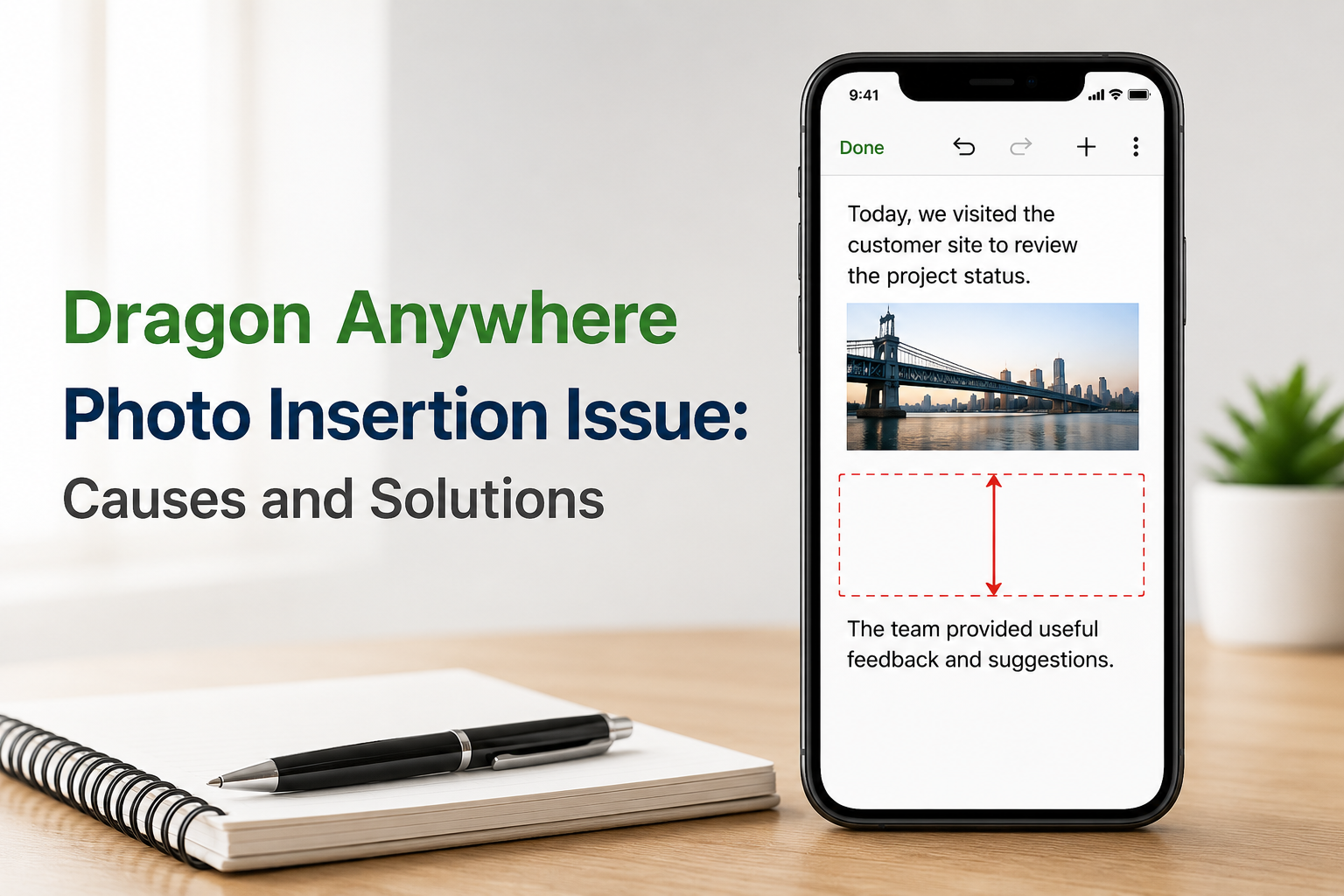
Dragon Anywhere is a powerful mobile speech recognition solution that allows professionals to create and edit documents using voice commands. While the application is known for its accuracy and productivity benefits, some users occasionally encounter formatting problems after inserting photos into their documents. One of the most common concerns is unsatisfactory spacing, where large gaps appear between text and images, affecting the overall appearance and readability of the document.
Understanding the causes of this issue and knowing how to resolve it can help you maintain clean, professional documents while continuing to enjoy the benefits of voice dictation technology.
Why Does the Photo Insertion Issue Occur?
When a photo is inserted into a document, Dragon Anywhere must adjust the surrounding text layout to accommodate the image. Depending on the image size, document format, or device settings, the application may introduce additional spacing before or after the photo.
Several factors can contribute to this issue:
- Oversized images that require extra document space.
- Formatting inconsistencies within the document.
- Synchronization issues between Dragon Anywhere and connected cloud services.
- Outdated application versions containing known formatting bugs.
- Device-specific display or rendering differences.
Although these issues can be frustrating, they are usually easy to identify and resolve.
Common Solutions for Spacing Problems
1. Resize the Image Before Insertion
Large images often create unwanted blank areas in a document. Before inserting a photo, reduce its dimensions using your device’s photo editor. Smaller images typically integrate more smoothly into the text flow.
2. Update Dragon Anywhere
Software updates frequently include bug fixes and performance improvements. Ensure that you are using the latest version of Dragon Anywhere to minimize formatting and image-handling issues.
3. Review Document Formatting
Sometimes the issue is not caused by the image itself but by existing formatting settings. Check for extra paragraph breaks, line spacing adjustments, or hidden formatting marks that may be affecting document layout.
4. Reinsert the Photo
If unusual spacing appears immediately after adding an image, try removing the photo and inserting it again. This simple step can often correct temporary formatting glitches.
5. Sync and Refresh the Document
For users who sync documents through cloud platforms, refreshing the document or re-syncing can help resolve display inconsistencies and restore proper formatting.
Best Practices for Smooth Document Formatting
To reduce the likelihood of spacing issues, consider adopting a few best practices:
- Use appropriately sized images.
- Keep Dragon Anywhere updated.
- Save documents regularly.
- Review formatting before sharing or exporting documents.
- Test image placement in important reports before finalizing them.
These habits can help ensure a smoother editing experience and more professional-looking documents.
Conclusion
Photo insertion issues in Dragon Anywhere can sometimes lead to unexpected spacing and formatting challenges, but they are usually manageable with a few simple adjustments. By resizing images, updating the application, reviewing document formatting, and following best practices, users can maintain clean and organized documents while benefiting from advanced speech recognition technology.
Whether you rely on Dragon Anywhere for business, healthcare, legal work, or personal productivity, addressing these formatting concerns can help you maximize efficiency and create polished documents with confidence.

 English
 Arabic
 French
 Spanish
 Portuguese
 Deutsch
 Turkish
 Dutch
Dutch
 Italiano
 Russian
 Portuguese (Brazil)
 Greek
Greek