


How to Easily Manage Dragon Profiles and Dictation Sources
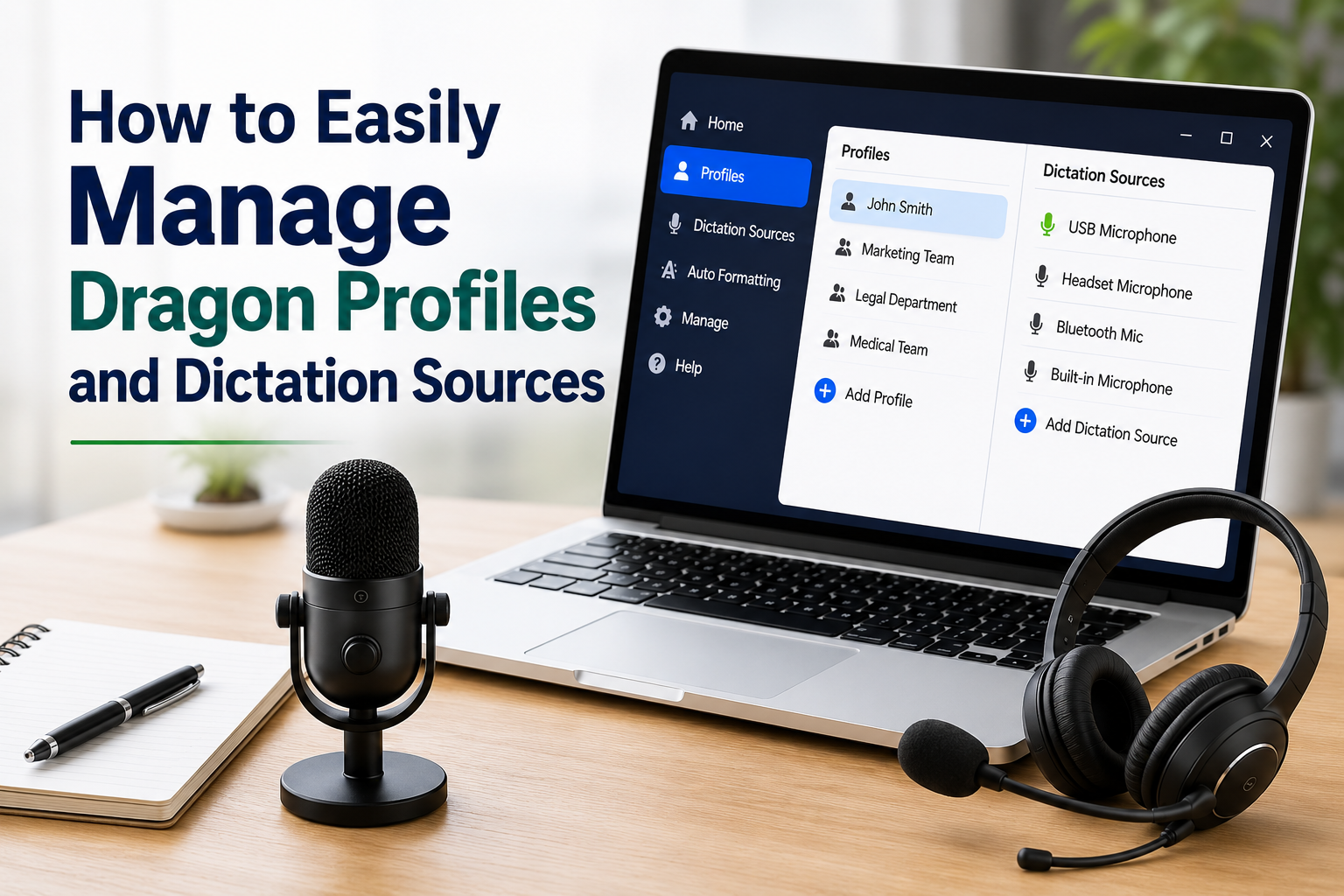
Dragon Naturally Speaking is one of the most advanced speech recognition solutions available today. To get the best performance from the software, it is important to properly manage your Dragon profiles and dictation sources. A well-configured profile helps Dragon understand your speech patterns, while the correct dictation source ensures clear and accurate voice input.
In this guide, we will go through the following topics:
- Understanding Dragon Profiles
- What Are Dictation Sources?
- Switching Between Profiles and Dictation Sources
- Creating a New Dragon Profile
- Adding a New Dictation Source
- Managing and Deleting Profiles
- Best Practices for Improved Accuracy
Let's explore each topic in detail.
Understanding Dragon Profiles
A Dragon profile is a personalized speech recognition file that stores information about your voice, vocabulary, pronunciation, and usage habits. Dragon continuously learns from your speech and adapts to your speaking style over time.
Each user should have a separate profile because speech patterns, accents, and vocabulary differ from person to person. Using individual profiles helps improve recognition accuracy and overall performance.
What Are Dictation Sources?
A dictation source refers to the microphone or audio device used for speech input. Dragon supports various devices, including USB headsets, Bluetooth microphones, wireless microphones, and built-in computer microphones.
Multiple dictation sources can be associated with a single profile, allowing users to switch between devices without creating new profiles. This feature is particularly useful for professionals who work from different locations or use multiple computers.
Switching Between Profiles and Dictation Sources
Dragon automatically loads the last profile used during startup. However, users can easily switch profiles whenever necessary.
To switch profiles, open the Dragon menu and select the desired profile from the Recent Profiles list. If the profile does not appear, use the Manage Profiles option to locate and load it manually.
When multiple microphones are configured, users can select a different dictation source from the microphone menu. This flexibility ensures smooth transitions between devices without affecting profile settings.
Creating a New Dragon Profile
Creating a new profile is a simple process. Open the Profiles section, select Add Profile, and enter a unique profile name. Next, choose your preferred microphone, language, and regional settings.
After the profile is created, Dragon will guide you through a microphone setup process. This step is essential because it helps optimize audio quality and improves speech recognition performance.
Adding a New Dictation Source
If you purchase a new microphone or wish to use Dragon with another audio device, you can add a new dictation source to your existing profile.
Navigate to the Profiles panel and select Add Dictation Source. Choose the desired microphone, assign a custom name if desired, and complete the microphone setup wizard. Dragon will then optimize the device for future use.
Managing and Deleting Profiles
Over time, some profiles or dictation sources may become unnecessary. Dragon allows users to delete unused profiles and microphones to keep the system organized.
Simply select the profile or dictation source you want to remove and choose Delete. Remember that Dragon does not allow deletion of the currently active profile or dictation source. At least one profile and one dictation source must remain available.
Best Practices for Improved Accuracy
To achieve the best speech recognition results:
- Use a high-quality microphone.
- Complete microphone setup whenever you add a new device.
- Speak clearly and naturally.
- Keep your Dragon profile updated.
- Regularly save your profile to preserve training data.
- Use separate profiles for different users.
Conclusion
Managing Dragon profiles and dictation sources correctly is essential for maximizing the accuracy and efficiency of Dragon NaturallySpeaking. By understanding how profiles work, configuring multiple microphones, and maintaining your settings regularly, you can enjoy a smoother and more productive voice dictation experience. Following the steps outlined above will help ensure that Dragon continues to deliver reliable and accurate speech recognition every day.
Source: Dragon profiles and dictation sources

 English
 Arabic
 French
 Spanish
 Portuguese
 Deutsch
 Turkish
 Dutch
Dutch
 Russian
 Romaian
 Portuguese (Brazil)
 Greek
Greek