


Dragon Professional Individual 16: Comprehensive Upgrade Guide
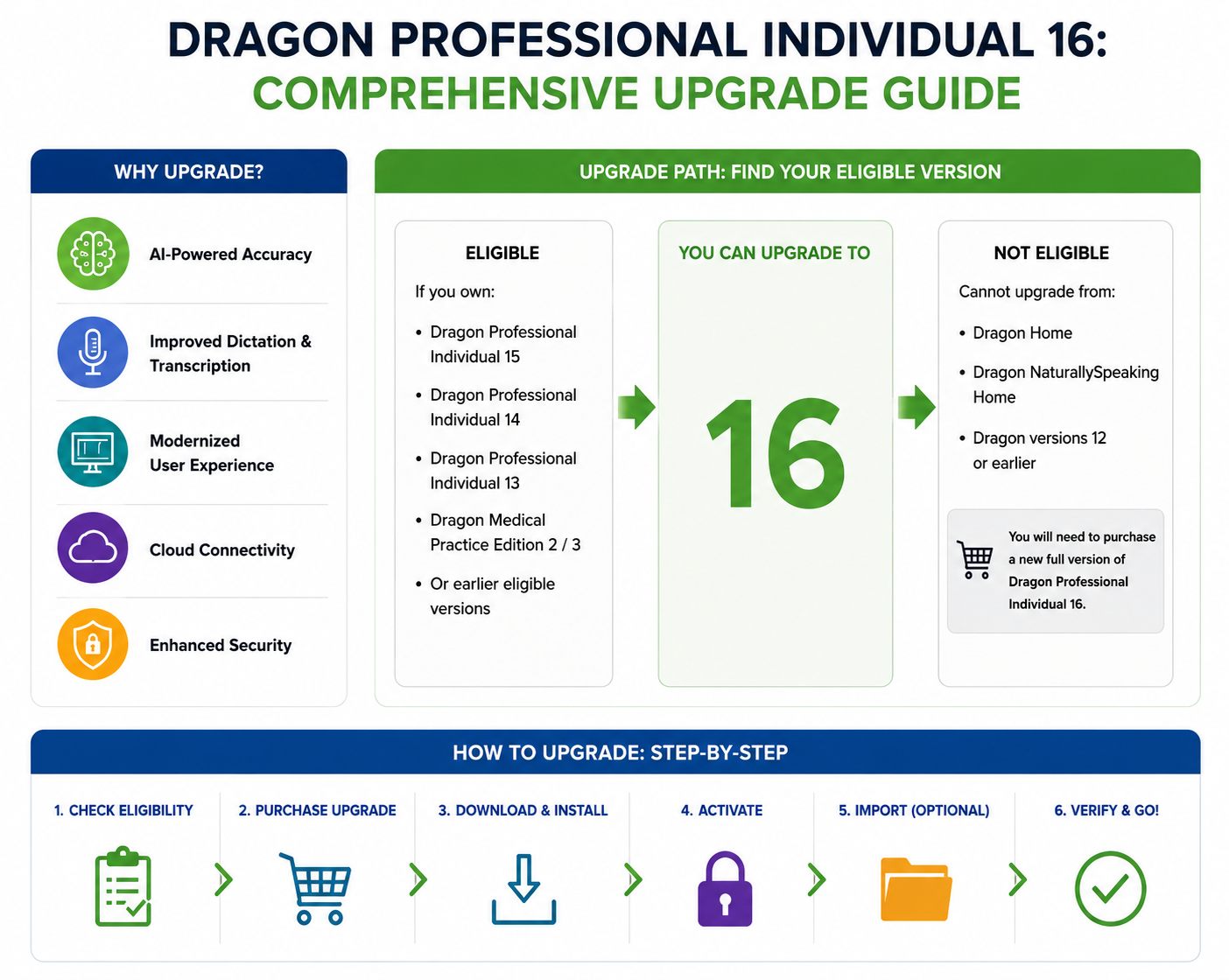
Dragon Professional Individual 16 is the latest version of Nuance’s popular speech recognition software, offering enhanced accuracy, faster performance, and better compatibility with modern applications.

Whether you are a long-time Dragon user or upgrading from version 13, 14, or 15, this guide will help ensure a smooth and efficient transition while maintaining your custom settings and commands.
Table of Contents
- Why Upgrade to Dragon 16
- Best Practices Before Upgrading
- Exporting and Importing Custom Words and Commands
- Step-by-Step Upgrade Instructions
- Activation and Serial Number Details
- Common Issues During Upgrade
- Conclusion
1. Why Upgrade to Dragon 16
Upgrading to Dragon 16 provides several key advantages:
- Improved Accuracy: Better recognition of accents, speaking styles, and industry-specific terminology.
- Faster Performance: Streamlined processing allows smoother dictation and quicker response times.
- Better Compatibility: Supports the latest Windows environments and popular productivity applications, including Microsoft Office.
- Workflow Automation: Enhanced custom commands and voice navigation streamline repetitive tasks, improving efficiency.
- Reliability and Security: Reduces crashes and includes the latest software improvements and security updates.
2. Best Practices Before Upgrading
Before starting the upgrade, back up your existing Dragon profile to avoid losing custom words and commands:
- Export custom vocabulary from the Vocabulary Center.
- Export user-defined commands from the Command Center.
Backing up ensures your personalized settings can be restored if needed.
3. Exporting and Importing Custom Words and Commands
Export Custom Words:
- Open Vocabulary Center → Export Custom Word and Phrase List.
- Name the file and save it in a secure location.
Export Custom Commands:
- Open Command Center → Mode → Manage → User-Defined.
- Select commands → Click Export → Save to a secure location.
4. Step-by-Step Upgrade Instructions
- Close all open programs and antivirus software.
- Download the Dragon installer and run it.
- Install Microsoft .NET Framework 4.8 if prompted and restart.
- Follow the InstallShield wizard → accept license terms → enter serial number.
- Choose installation directory (advanced options optional) → click Install.
- Launch Dragon 16 and activate the product.
5. Activation and Serial Number Details
- Serial numbers are available in your confirmation email or in Dragon under Help → About Dragon.
- Dragon can be launched in trial mode up to five times before activation is required.
6. Common Issues During Upgrade
Users may encounter:
- Installation freezing or failing due to insufficient resources or missing updates.
- Serial number errors or online activation problems.
- Profile migration issues, including missing custom vocabulary or commands.
- Microphone recognition issues caused by outdated drivers.
- Performance delays immediately after installation.
7. Conclusion
Upgrading to Dragon Professional Individual 16 is straightforward if best practices are followed. With improved accuracy, faster performance, and enhanced workflow automation, Dragon 16 is designed to save time and boost productivity for both individual and professional users. By backing up profiles, following installation steps carefully, and addressing common issues, users can enjoy a smooth transition to the latest version.
Source: How to Upgrade to Dragon 16?

 English
 Arabic
 French
 Spanish
 Portuguese
 Deutsch
 Turkish
 Dutch
Dutch
 Italiano
 Russian
 Romaian
 Greek
Greek